
CareNet WhatsApp
Official merchant documentation for the CareNet WhatsApp Shopify app — setup guide, dashboard screenshots, and troubleshooting.
1. App Overview
Purpose: Add a floating WhatsApp chat button to your storefront so customers can message you with one click.
Who is this for?
Shopify store owners who want a simple WhatsApp contact button on every page — without coding or complex integrations.
What you need
- A Shopify online store (Online Store 2.0 theme)
- A WhatsApp number you own (mobile or WhatsApp Business)
- About 5 minutes for first-time setup
What merchants get
- A floating WhatsApp button on all store pages
- Central control from the app dashboard (number, message, label, on/off)
- Country code picker with country name (e.g.
+91 India) - Custom default message pre-filled when WhatsApp opens
- Button color customization in the theme editor
What the app does not do
- Does not send automated WhatsApp messages
- Does not read customer WhatsApp chats
- Does not replace WhatsApp Business API / official WhatsApp marketing tools
2. Features
| Feature | Description |
|---|---|
| Global floating button | Shows on all pages when App embed is enabled |
| Country + phone fields | Separate country code and local phone number |
| Default message | Pre-filled text when customer opens WhatsApp |
| Button label | Accessibility label for the floating button |
| Enable / disable toggle | Show or hide button without uninstalling the app |
| Theme colors | Button and icon colors from Theme → App embeds |
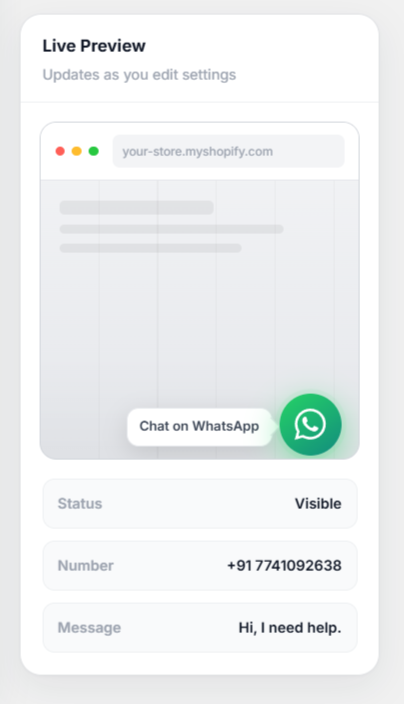
| Live Preview | See number, message, and button status before you save |
| In-app Setup Guide | Step-by-step help inside the app dashboard |
| Dashboard-only settings | Phone, message, and visibility managed in the app |
3. Merchant Setup Guide
Step 1 — Install the app
- Open the Shopify App Store and search for CareNet WhatsApp, or use your install link.
- Click Install app and approve permissions.
- Open the app from Apps in Shopify Admin.
Step 2 — Configure WhatsApp settings
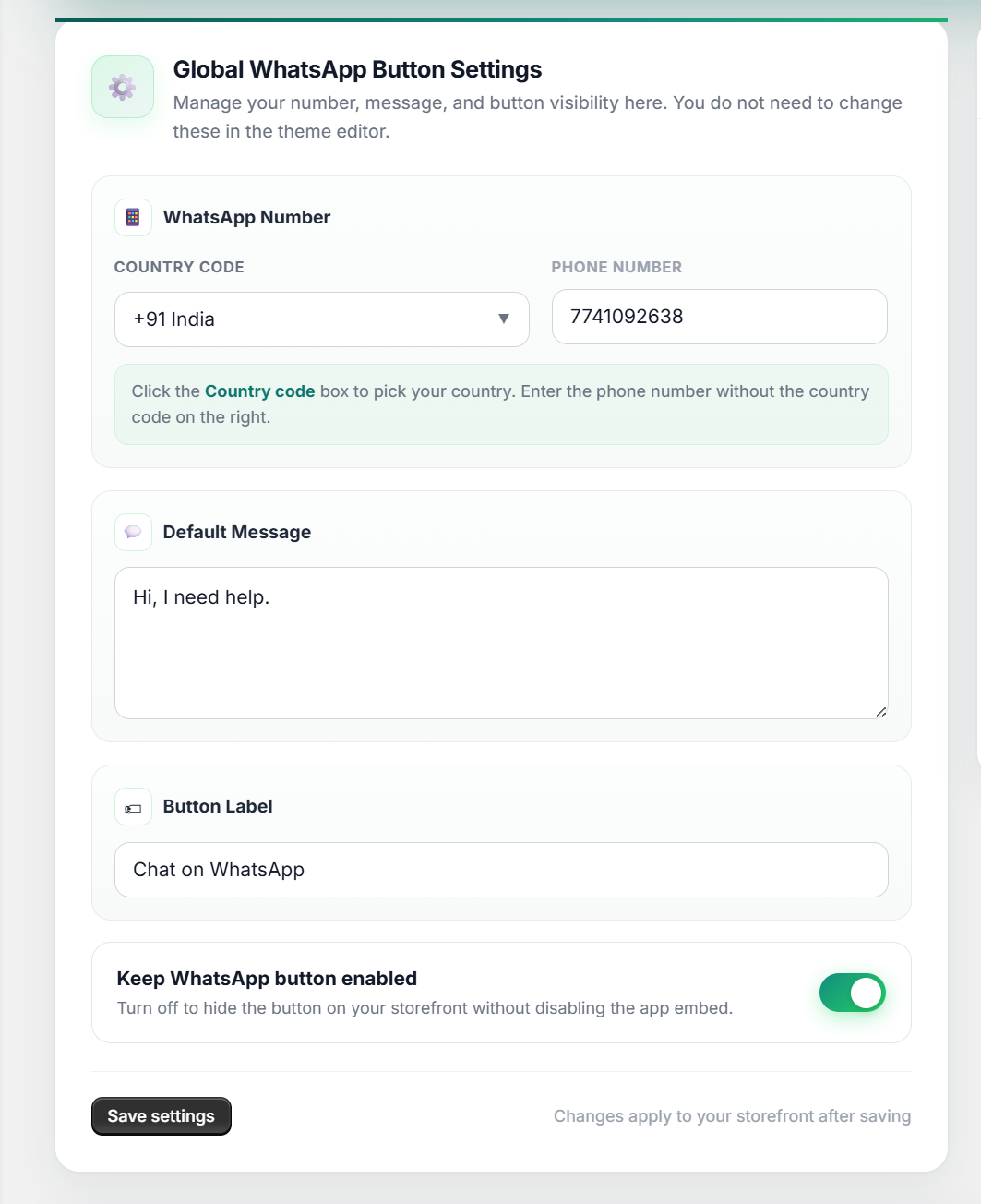
In the app dashboard:
- Country — Select your country (e.g.
+91 India). - Phone number — Enter the number without country code (e.g.
7741092638). - Default message — Message that opens in WhatsApp (e.g.
Hi, I need help.). - Button label — Label for accessibility (e.g.
Chat on WhatsApp). - Keep WhatsApp button enabled — Check to show the button on the store.
- Click Save settings.
Example: Country +91 India + phone 7741092638 → WhatsApp link uses +91 7741092638.
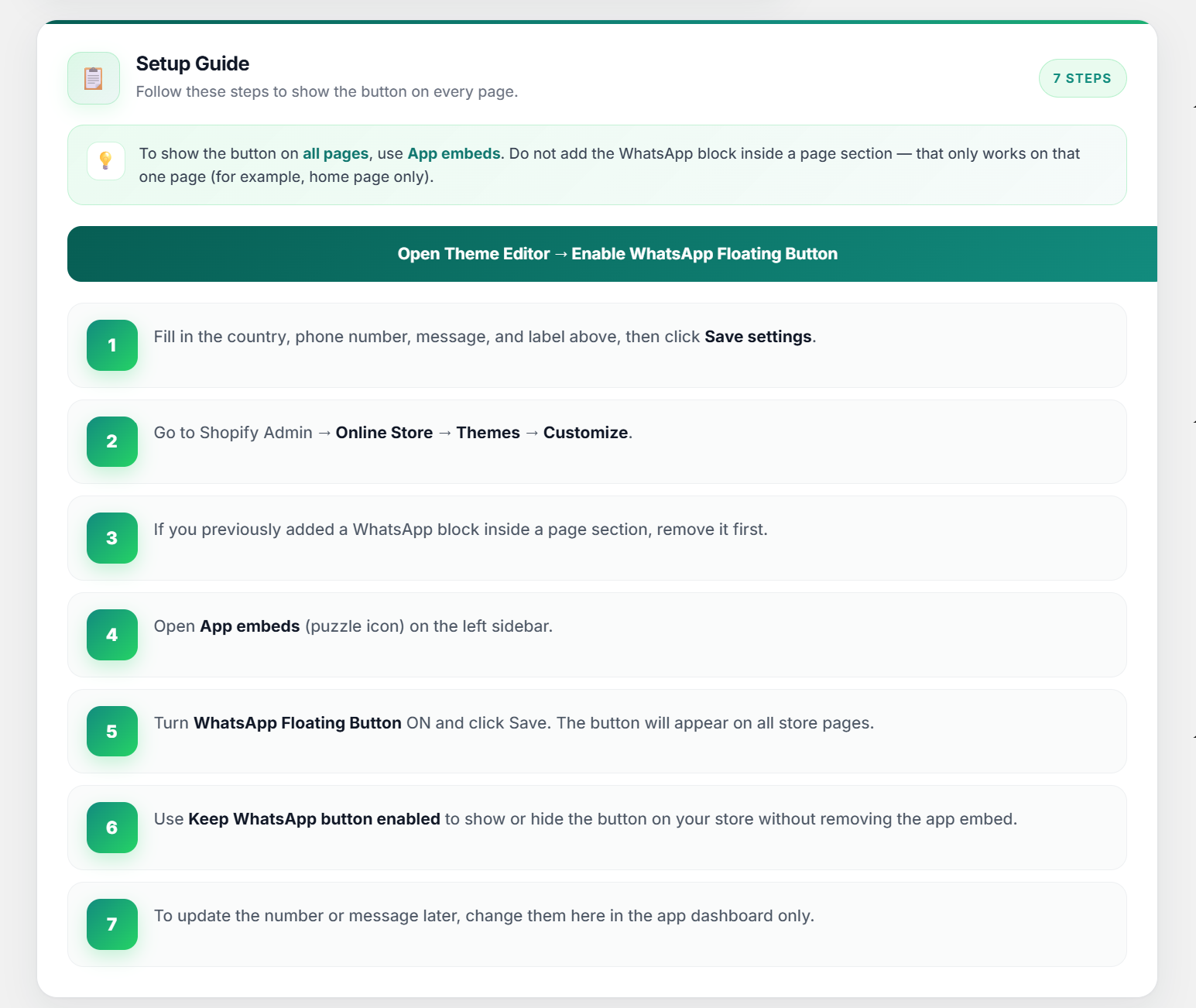
Step 3 — Enable on the storefront (required, one time)
- Go to Online Store → Themes → Customize.
- If you previously added a WhatsApp block inside a page section, remove it.
- In the left sidebar, open App embeds (puzzle icon).
- Turn WhatsApp Floating Button ON.
- Optional: change Button color and Text color.
- Click Save.
Step 4 — Verify
- Open your live storefront (home, product, collection, contact pages).
- Confirm the green WhatsApp button appears bottom-right on all pages.
- Click the button and confirm WhatsApp opens with the correct number and message.
4. App Dashboard Screenshots
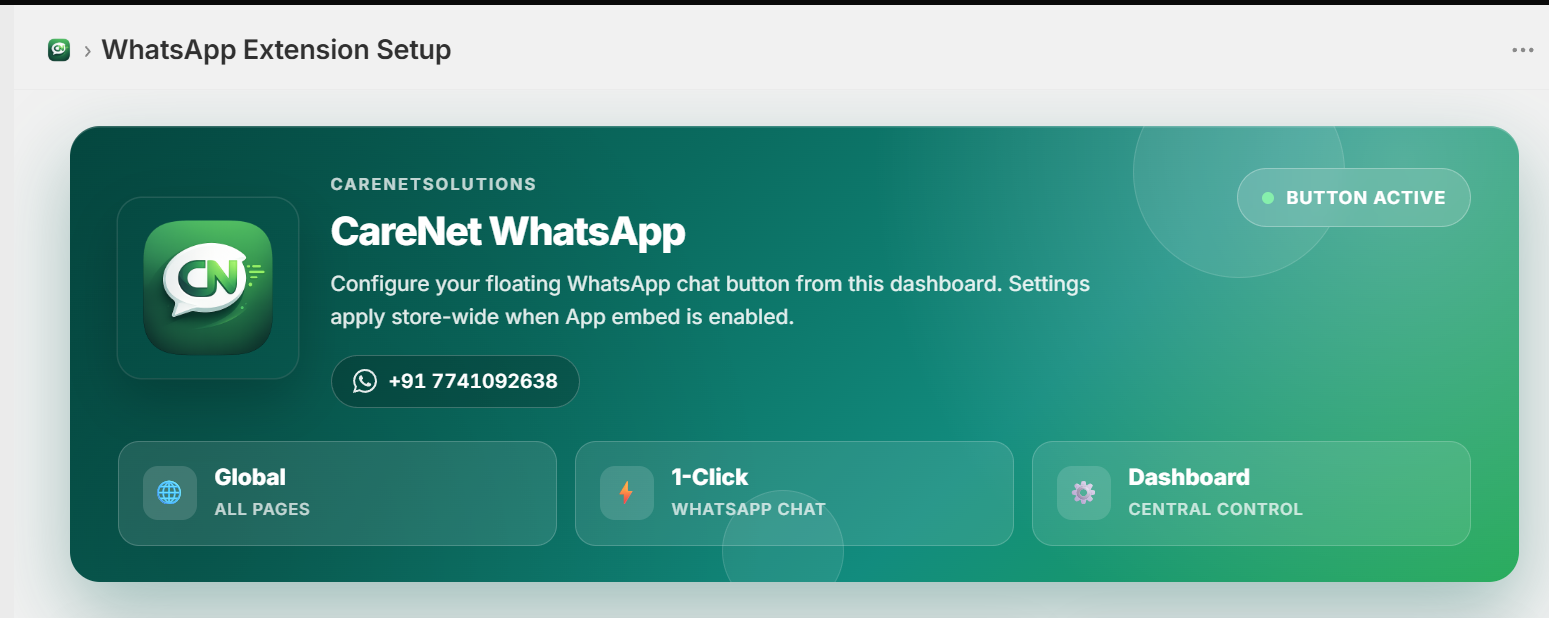
Visual reference for the CareNet WhatsApp admin interface inside Shopify Admin. Each screenshot maps to the setup steps above.
5. Troubleshooting
Button only shows on home page
Cause: A WhatsApp block was added to a single page section instead of using App embeds.
Fix:
- Theme → Customize → remove any WhatsApp block from page sections.
- Enable WhatsApp Floating Button under App embeds.
- Save the theme.
Button does not show anywhere
Check:
- Keep WhatsApp button enabled is checked in the app dashboard.
- Country and phone number are saved.
- WhatsApp Floating Button is ON under App embeds.
- Theme is saved after enabling the embed.
- Hard-refresh the storefront (Ctrl+F5 / Cmd+Shift+R).
Wrong phone number on WhatsApp
- Open the app dashboard.
- Update Country and Phone number.
- Click Save settings.
- Do not change the number in Theme Customize (only colors are used there).
Enable / disable toggle not working
- Uncheck or check Keep WhatsApp button enabled.
- Click Save settings.
- Refresh the storefront.
Button shows but wrong message
Update Default message in the app dashboard and click Save settings.
6. Data & Privacy
How CareNet WhatsApp handles store and app data.
Data collected
- Shop connection — Required so the app stays installed and can load your settings.
- App settings — WhatsApp number, default message, button label, and enabled state.
Data not collected
- Customer personal data from the storefront
- WhatsApp chat content
- Order or payment data (unless added in future versions)
Third-party services
- WhatsApp (Meta) — When a customer clicks the button, they are redirected to WhatsApp. Meta's terms and privacy policy apply.
Merchant responsibility
- Merchants must use a WhatsApp number they own or are authorized to use.
- Merchants are responsible for compliance with local laws and WhatsApp/Meta policies.
7. Settings Guide — What Each Field Does
Everything you can configure in the CareNet WhatsApp app dashboard and theme editor.
App dashboard settings
Open Apps → CareNet WhatsApp in Shopify Admin.
| Setting | What to enter | Example |
|---|---|---|
| Country code | Click the dropdown and pick your country | +91 India |
| Phone number | Your WhatsApp number without the country code — digits only | 7741092638 |
| Default message | Text pre-filled when a customer opens WhatsApp | Hi, I need help. |
| Button label | Short label for accessibility (screen readers) | Chat on WhatsApp |
| Keep WhatsApp button enabled | Turn ON to show the button on your store; turn OFF to hide it without uninstalling the app | ON |
| Save settings | Always click after changing any field — changes apply to your live store | — |
Live Preview panel
- Status — Shows if the button is Visible or Hidden on your store
- Number — Full WhatsApp number that will be used (country code + phone)
- Message — Default message customers will see in WhatsApp
- Updates as you type — you do not need to save to preview
Theme editor settings (colors only)
Go to Online Store → Themes → Customize → App embeds → WhatsApp Floating Button.
| Setting | What it does | Default |
|---|---|---|
| Button color | Background color of the floating WhatsApp button | Green #25D366 |
| Text color | Color of the WhatsApp icon inside the button | White #FFFFFF |
What your customers see
- A round green WhatsApp button fixed at the bottom-right of every page
- Visible on home, product, collection, cart, and other store pages
- One tap opens WhatsApp (app or web) with your number and default message ready
- Works on mobile and desktop
8. Frequently Asked Questions
Do I need WhatsApp Business?
No. The app works with a regular WhatsApp number and with WhatsApp Business.
Can I change my WhatsApp number later?
Yes. Open the app dashboard, update Country code and Phone number, then click Save settings.
Why is the button only on my home page?
You may have added a page block instead of using App embeds. Follow Step 3 in the setup guide to enable the global floating button.
Can I hide the button temporarily?
Yes. Turn off Keep WhatsApp button enabled in the dashboard and click Save settings. You do not need to uninstall the app.
Where do I change the button color?
In the theme editor under App embeds → WhatsApp Floating Button. Number and message are changed in the app dashboard only.
Does the app read my customer WhatsApp chats?
No. The app only adds a link to WhatsApp. Conversations happen directly between you and your customer in WhatsApp.
Does the app collect customer personal data?
No customer personal data is collected from your storefront. See Data & Privacy for details.
How long does setup take?
About 5 minutes: save your settings in the app, enable the App embed once in the theme editor, and verify on your store.
9. Help & Support
Need help with setup or the button not showing? Contact CareNetSolutions support.
| Contact | Details |
|---|---|
| Support email | support@carenetsolutions.com |
| App name | CareNet WhatsApp |
| Developer | CareNetSolutions |
| App version | 1.0 |
When contacting support, include:
- Your Shopify store URL (e.g.
your-store.myshopify.com) - A short description of the issue
- Screenshots of the app dashboard or theme editor if possible
- Whether App embed is enabled and settings are saved